EPSON PRINTER CONNECTIONS
For Epson 7800 and 9800 Large Format Printers
The Epson 9800/7800 large format printers supports several different
interfaces for connecting your printer to your computer. The type
of connection you should use depends on your environment. If you
don't plan on setting your printer up on the network then USB 2.0
is the recommended connection. (How do I determine
if I have a USB 2.0 compatible computer?)If you do plan on networking
your printer then a Ethernet Card is required.
In most cases, the difference in speed between USB, Firewire and
Ethernet is negligible since the print engine is typically the bottleneck.
These connections send the data to the printer faster then it can
process it.
Below are a comparison of the various different types of printer
interface connections supported by the
Epson 7800 and 9800 large format printers.
| Printer Connections Supported |
Standard on Epson 7800 & 9800? |
Performance Recommendation |
Installation Requirements |
Example |
| USB 2.0 |
Standard |
Standard connection with Printer. No installation required. |

USB Port |
| Firewire (IEEE 1394) |
Standard |
Unlike the previous 7600/9600 printers, the firewire is standard
in the 7800/9800 models. |
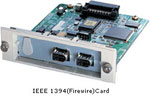
Firewire Card
|
| 10/100 base/T Ethernet cards |
Optional |
Ethernet card supports both 10 and 100 mbs network connections.
Ensure your network is running at 100mbs to ensure best performance
when printing. |
Like the firewire card, the ethernet card fits into the expansion
slot and screws into the base for installation. |
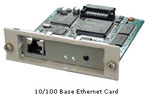
Ethernet Card
|
How do I determine if USB 2.0 controller is
available?
In windows 2000 or windows XP, the easiest way to determine whether
or not your computer has USB 2.0 is to load up your Device Manager.
The device manager can be loaded through the control panel ->
System -> Device Manager Tab.
Once the device manager has loaded expand the Universal Serial
Bus Controllers section and check for a controller that has either
2.0 or enhanced in its name:
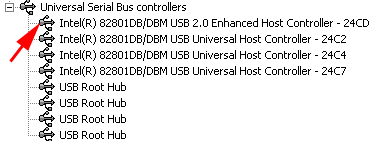
|


 Print
Print
